
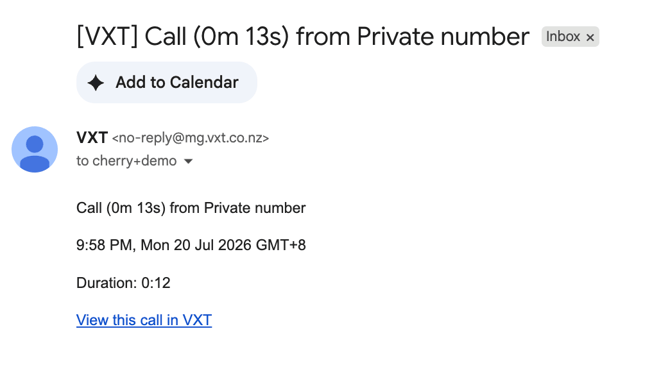
The call records to email integration sends you an email with the details of a call once it ends. This is handy for keeping track of conversations, sharing call info with a colleague, or just saving it for later. This is set up individually by each user (similar to our other integrations). Turning it on as an admin doesn't switch it on for the whole team.
Quick clarification: This is not call recording. The feature emails you the details of a call (date, time, duration, phone number, call notes, and a link to the call in VXT). It doesn't include audio, transcriptions, or summaries. If you're looking to record and play back actual conversation, check out our recording calls article instead.
This article includes steps to:
Enable call records to email
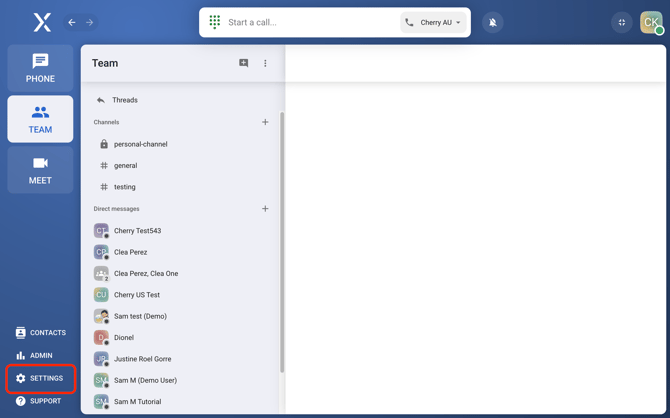
- Open settings.
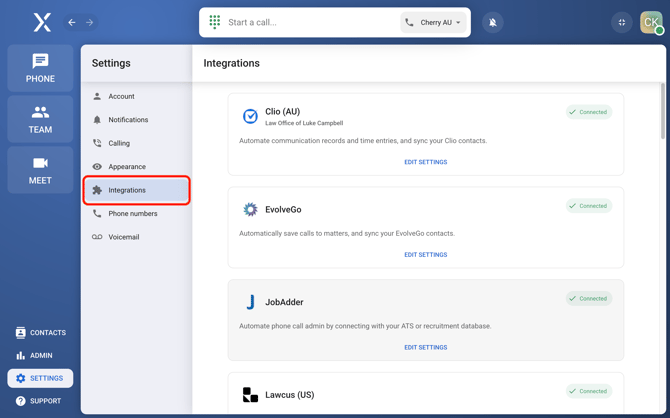
- Select integrations.
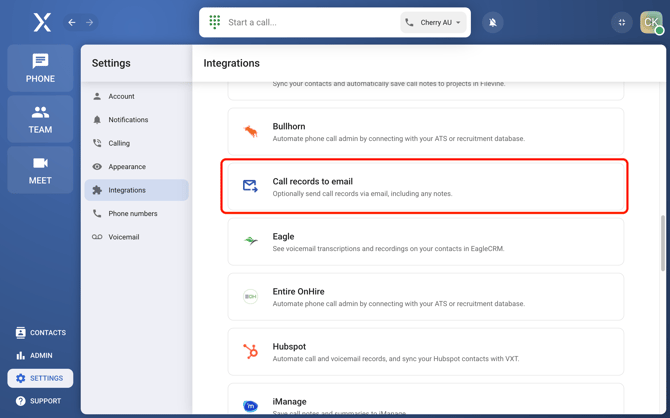
- Click call records to email.
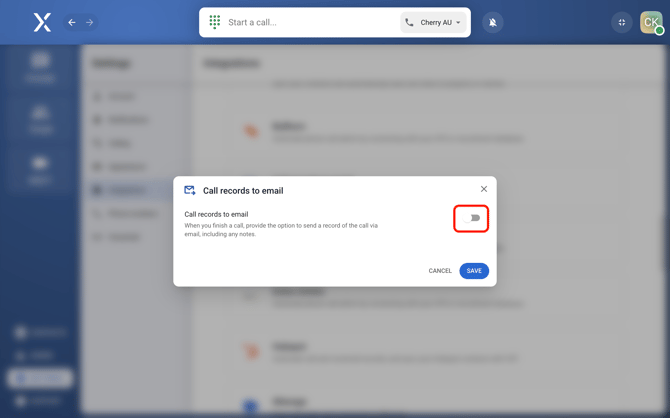
- Toggle it on to enable, or off to disable.
- Click add to email to set a default email address.
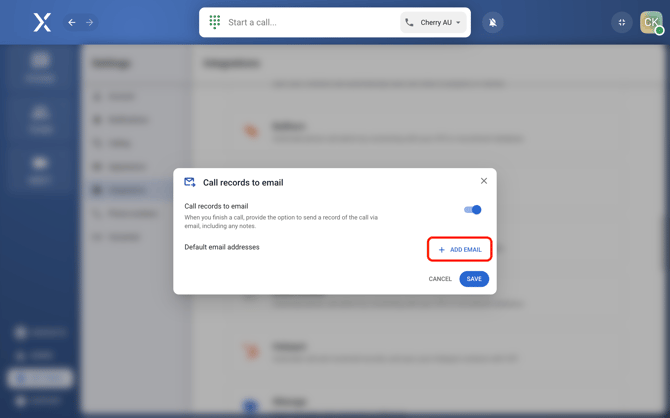
- Enter the email address you want to send call records to.
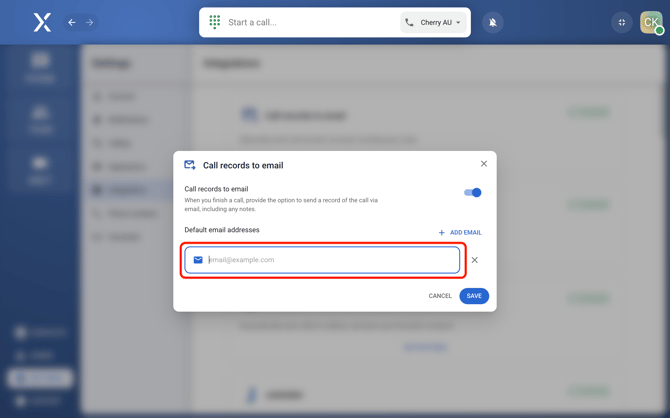
- Click save.
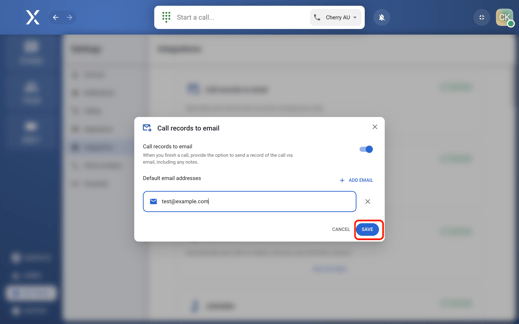
Send a call record
When your call ends:
- In the post-call window, check that the email address is correct, or add another one if needed.
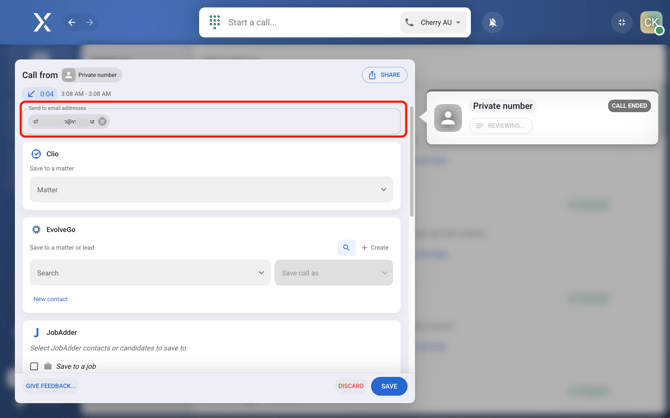
- Click the
 beside the email address to remove it from the list, if needed.
- Click the
- For a call with a closed post-call window:
- Go to the phone page.
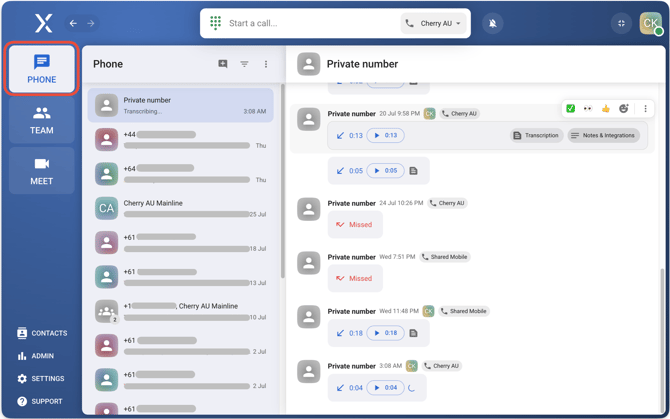
- Click the call you want to send
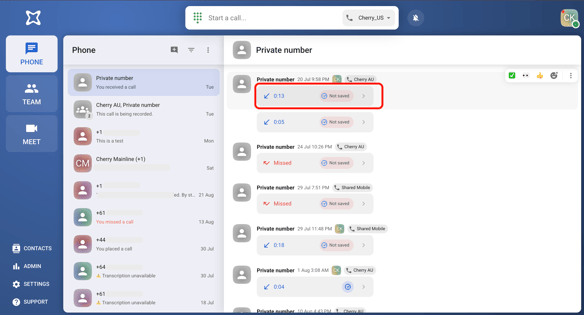
- Locate email forwarding from the list of integrations.
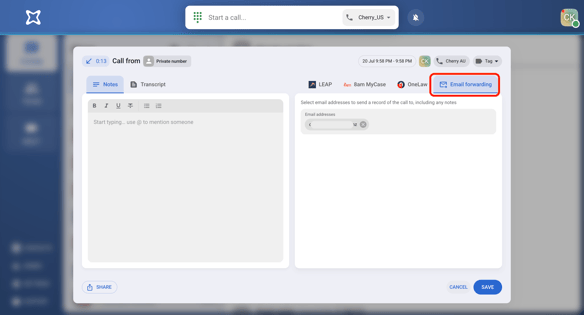
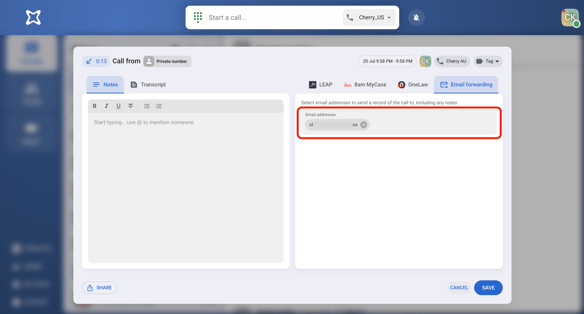
- Check the email address or add another one.
- Go to the phone page.
- Click save.
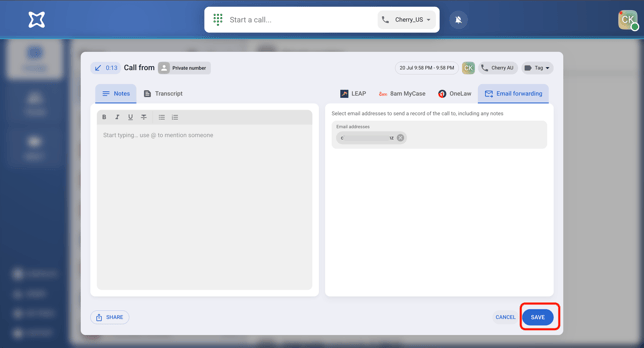
- Check your inbox for the email.
Frequently Asked Questions (FAQs)
- I didn't receive the email. What should I do?
First, make sure the email address is correct and check your spam and junk folder.
If you're still not receiving emails from VXT, follow the steps in this article to whitelist VXT emails and troubleshoot common email delivery issues. - Can I send a call record to more than one email address?
Yes, you can add multiple email addresses before sending the call record. - I set this up as an admin— does it apply to everyone, or does each person need to set it up themselves?
Each user needs to set this up on their own, similar to how our other integrations work. Turning it on as an admin does not automatically switch it on for the whole team.