With VXT Meet on mobile, you can record a meeting right from your phone, add notes and tags, and save everything to your integration.
📝 Note: This article is about Meet in the VXT mobile app. Looking for Meet on desktop? See VXT Meet. Want to record a phone call instead? Check out Recording calls.
In this article, we'll cover:
Start a Meet recording
- Open the VXT mobile app.
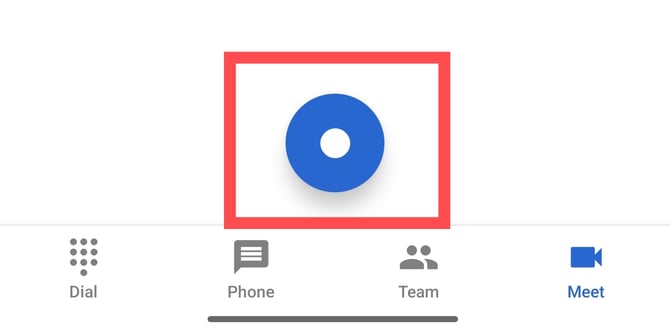
- Go to the Meet tab.

- Tap the record icon at the bottom center of the screen to start recording.
Save the recording
Post-call:
- Rename the meeting and add notes.
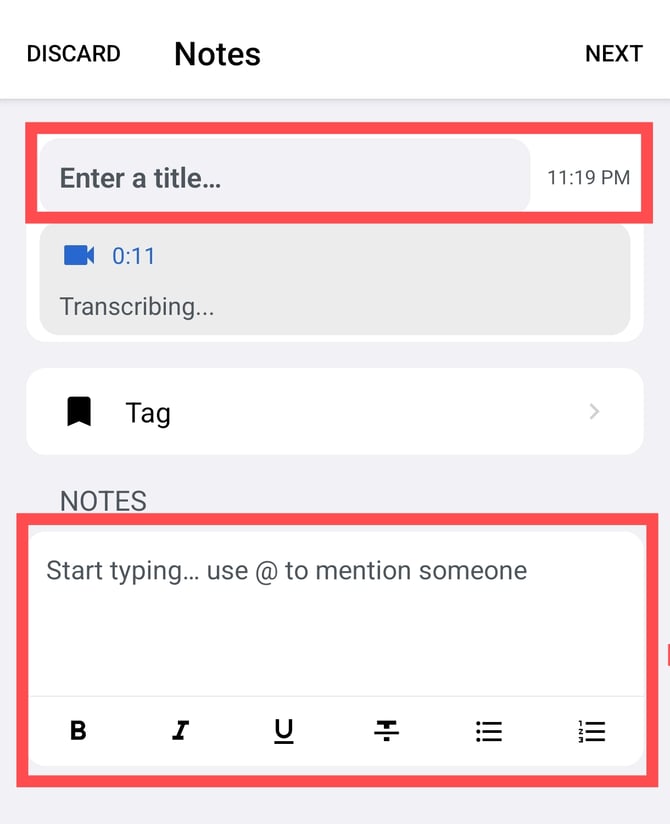
- Tap next.
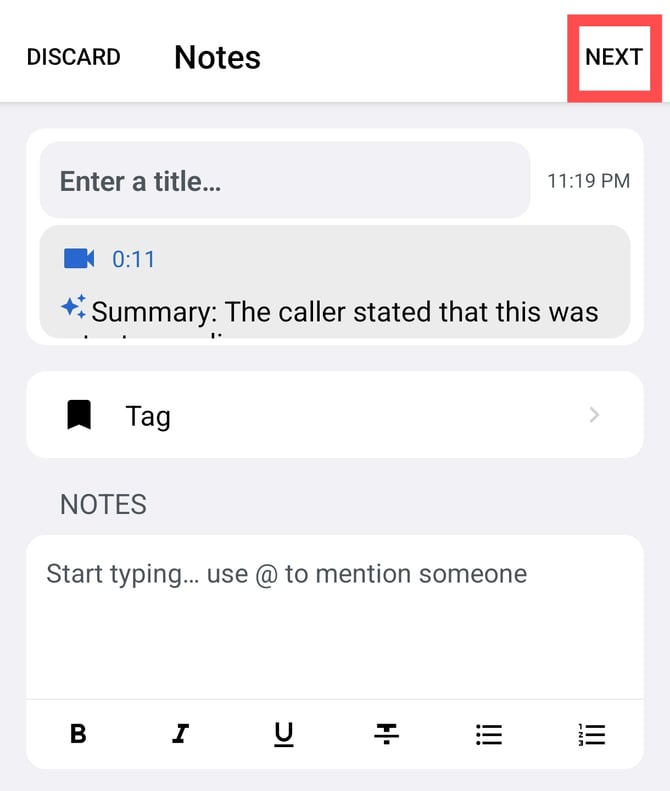
- Select the right matter, case, project, or job depending on your integration.
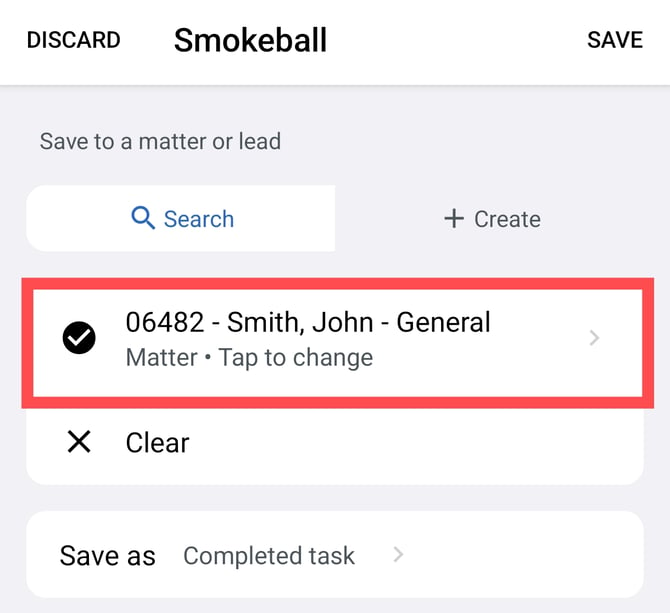
- Tap save to send it to your integration.
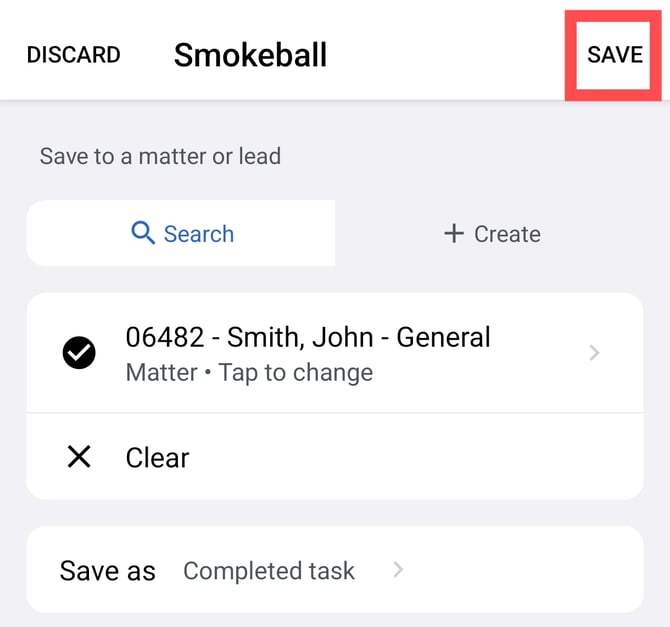
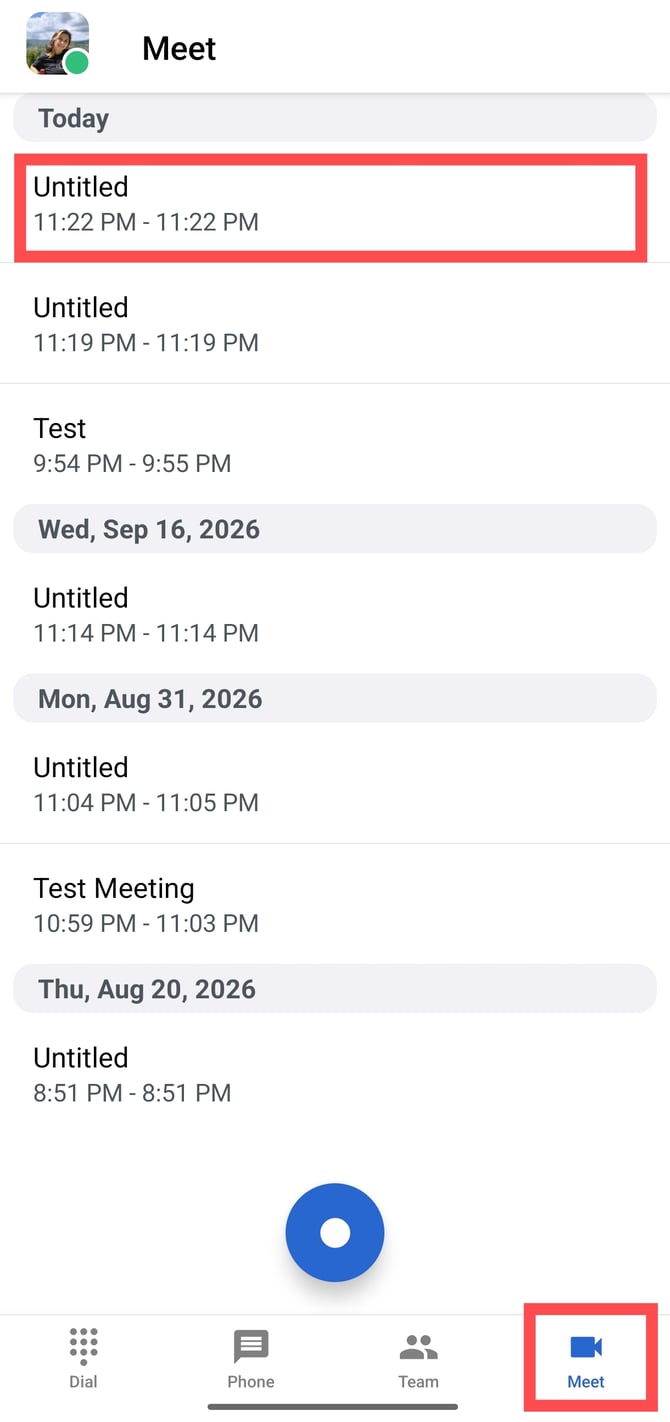
From the meet tab (any time later):
- Go to the meet tab and select the meeting.
- Tap add/edit notes and tag to enter, review and edit meeting notes, tags, and title.
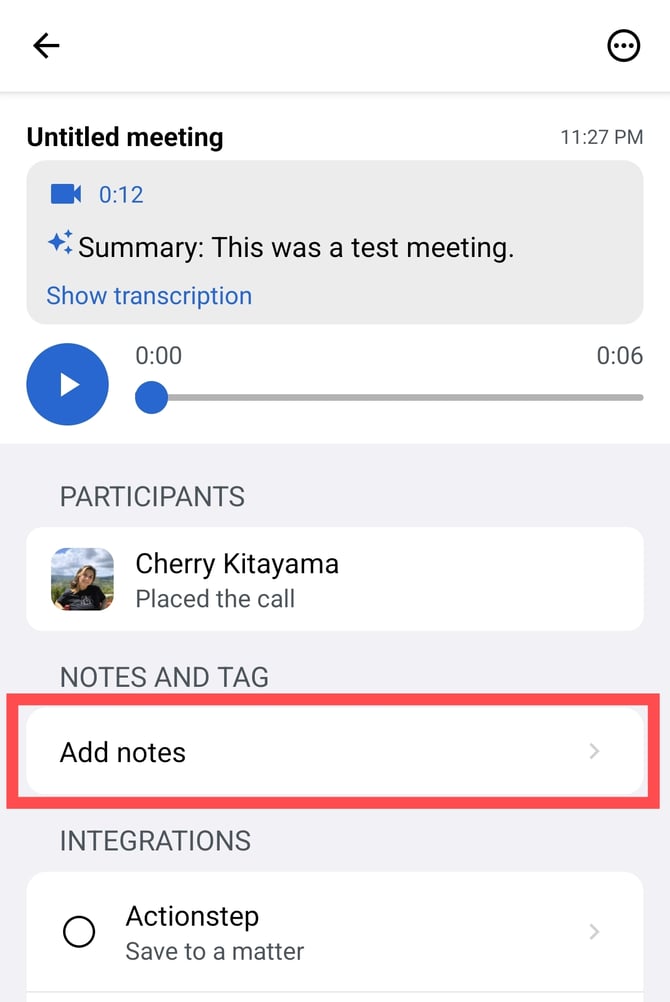
- Select the integration to save the meeting to.
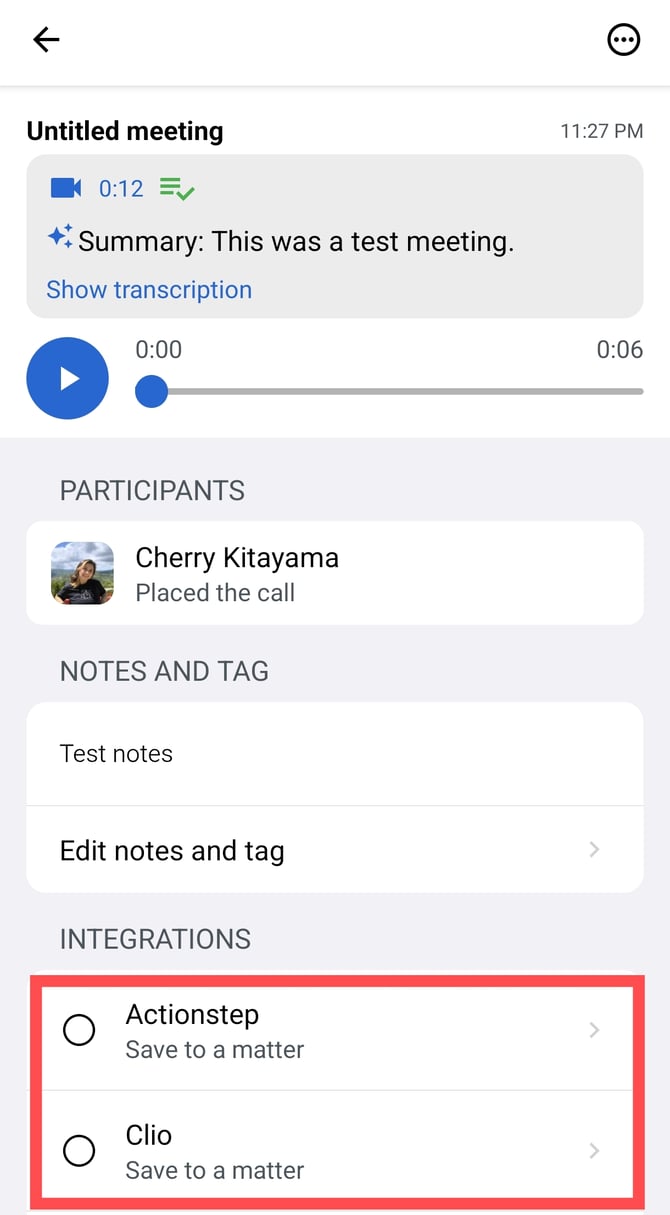
- Follow post-call steps 3 and 4.
Want to do more with the meeting? Tap the three dots (  ) at the top right corner of the screen to:
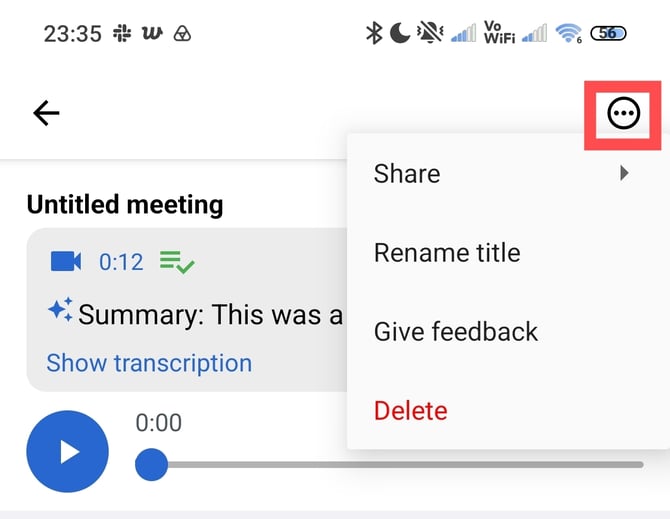
- Share: Share the transcription, summary, or message audio.
- Rename title: Change the meeting name
- Give Feedback: Report the meeting log
- Delete: Delete the meeting recording.
Known Behaviors
A few things work a little differently depending on your phone.
iPhone: Siri, timers, and alarms
If you use Siri, or a timer or alarm goes off during a meeting, iOS takes over the microphone, and recording may not continue afterward.
- Where you can, avoid using Siri during a meeting.
- If an alarm or timer goes off, check that your meeting is still recording. If it has stopped, resume the meeting.
Android: alarms and incoming phone calls
- Alarm: Recording keeps going, and you may hear the alarm in the recording.
- Phone call: Audio recorded after you accept a call may not be usable. If you need to take a call, we recommend ending or pausing your meeting first, then starting or resuming it once the call is finished.
Change the default landing tab
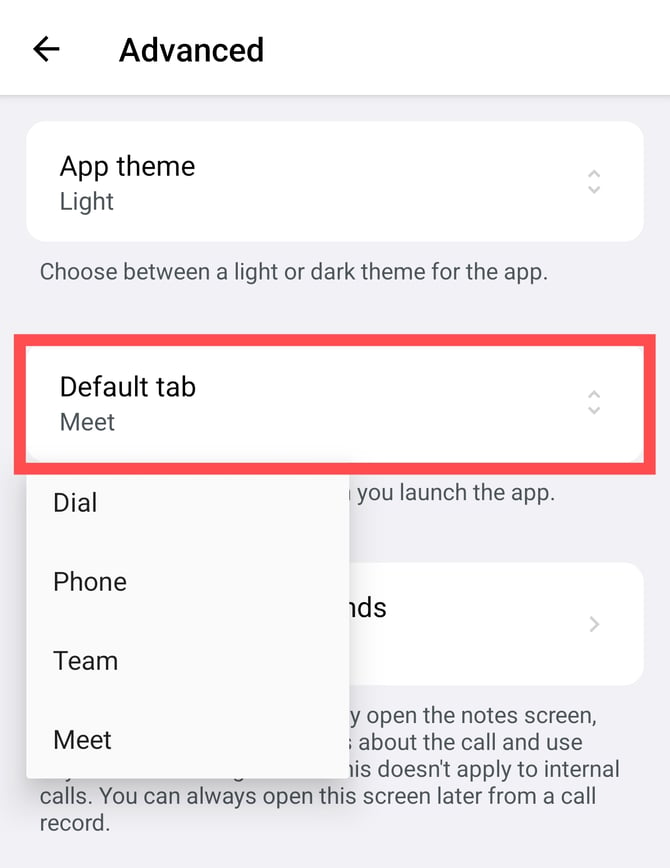
VXT mobile opens on the Meet screen by default. Prefer to land on the Dial screen instead?
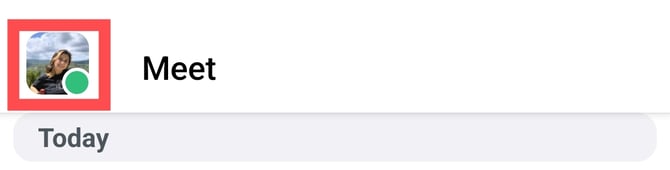
- Tap on your profile.
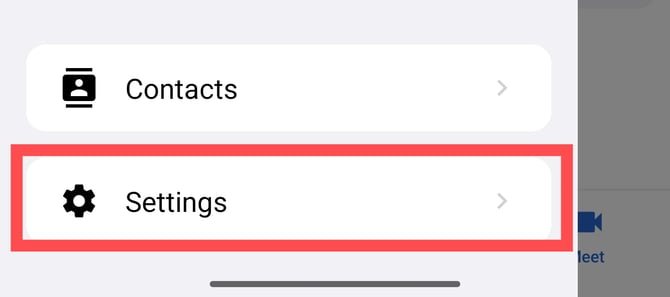
- Go to settings at the bottom of the left side panel.
- Select advanced.
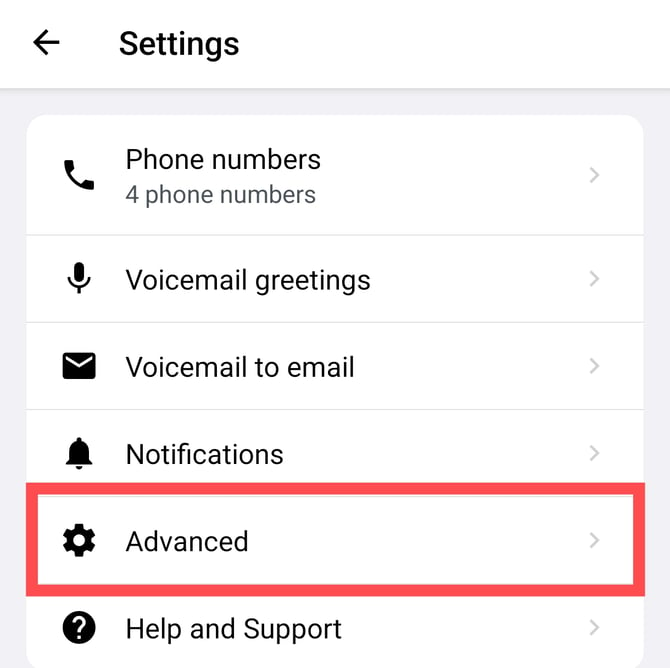
- Tap default tab and choose your preferred default screen.