
When you select Open in Email on a VXT email draft, it opens in your computer's default email app. If that isn't set, or it's set to an app you don't use, the draft may not open or may open in the wrong place.
The fix is quick: choose the email app you want to use (like Outlook) in your computer's settings.
In this article, we'll cover:
- Mac
- Windows
Mac
- Open the Mail app.
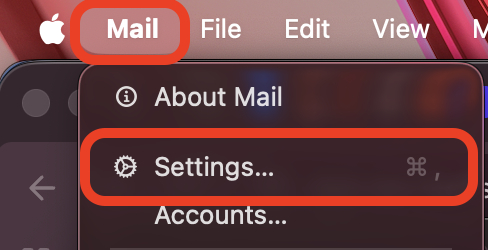
- In the menu bar, select Mail, then Settings.
- On the General tab, open the Default email reader dropdown.
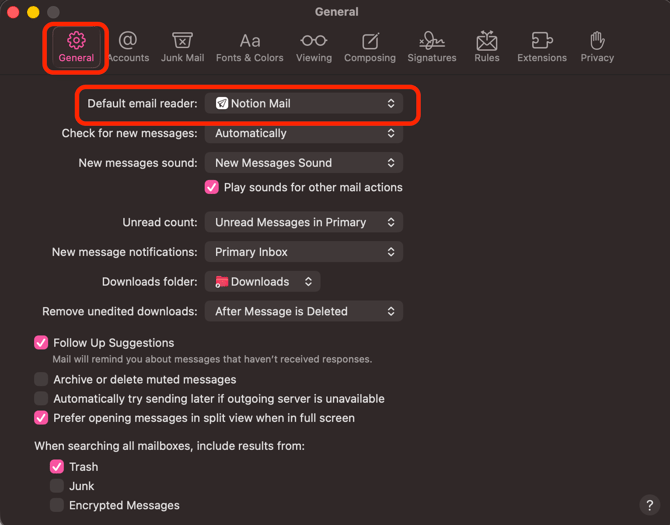
- Pick your preferred app, like Outlook.

- Don't see it? Choose Select... and find it in your Applications folder.
- Close the Settings Window. It saves automatically.
Windows
- Open Windows Settings.
- Go to Apps, then Default apps.
- Scroll to the bottom and select Choose default apps by protocol.
- Type MAILTO in the search box.
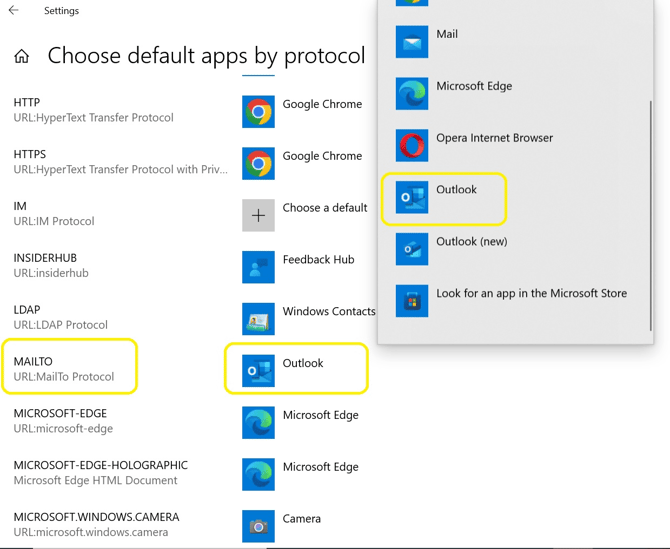
- Select the app shown next to MAILTO (like Mail or Edge)
- Pick your preferred app, like Outlook.
- Hit Set default.
Once that's done, head back to VXT and try Open in Email again.
FAQs
- Why won't my VXT email draft open?
Open in Email uses your computer's default email app. If none is set, or it's set to an app you don't use, the draft may not open. Set your preferred app using the steps above. - Will this change affect other email links?
Yes. Your default email app is used for all email links on your computer, not just VXT drafts. - Can I skip changing my settings?
Yes. In the Email tab, click the copy icon and paste the draft into any email app.