
VXT Meet records your meeting audio and saves key details directly into your legal software through our integrations.
📝 Note: Meet records audio using your microphone and system audio. It does not host meetings or "join" a meeting as a participant or bot.
In this article, we'll cover:
- How Meet detects and starts a recording
- Meet pop-up functionality
- Disable meeting detection notifications
- Limitations
How Meet detects and starts a recording
With your permission, Meet automatically detects when you start a video meeting on your computer and prompts you with a meeting detected notification to start recording.
This notification looks a little different depending on your operating system. Windows and macOS each have their own style(screenshot below).
.png?width=670&height=127&name=image%20(26).png)
To start a meeting recording, you can either:
- Click on the meeting detected notification, or
- Go to the Meet page in VXT, and click NEW at the top of the page.
.jpg?width=670&height=234&name=Untitled%20design%20(7).jpg)
Meet pop-up functionality
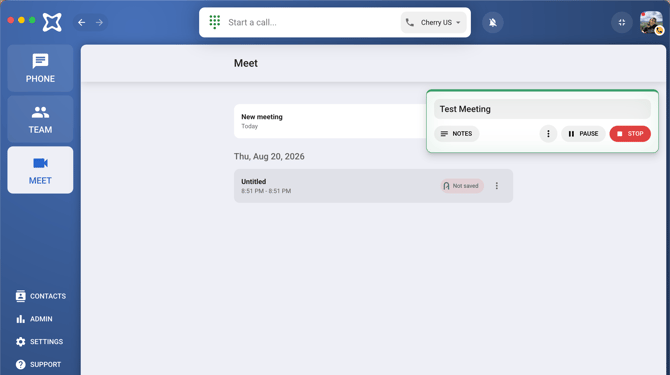
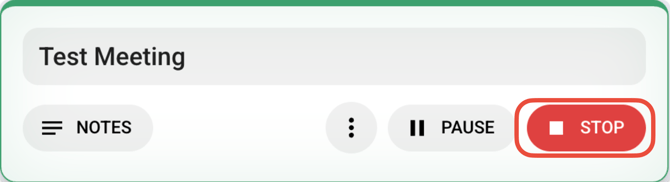
While you're recording, the Meet pop-up gives you a few controls to manage your meeting on the fly:
-
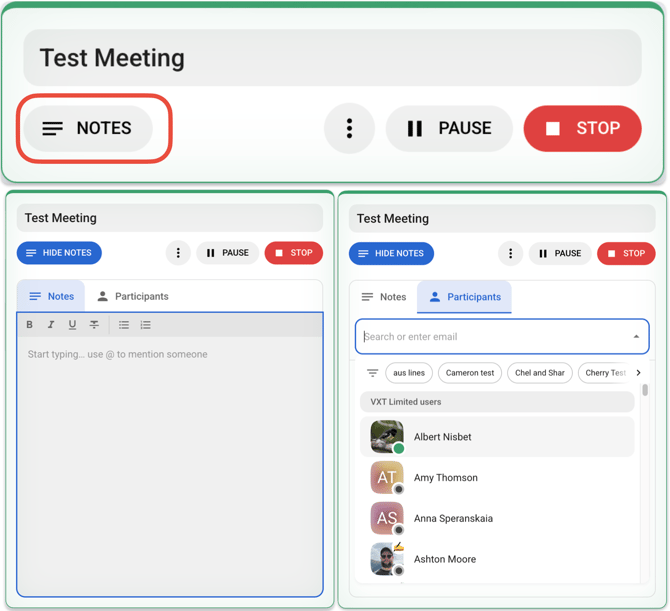
Show/hide notes- enter notes as the meeting happens, and add participants.
- Audio settings- click the three dots (
 ) and select audio settings to switch which microphone Meet uses to record.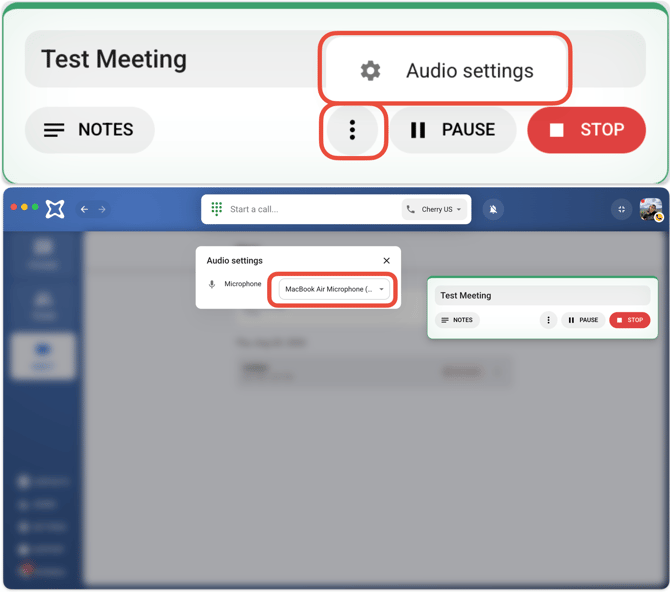
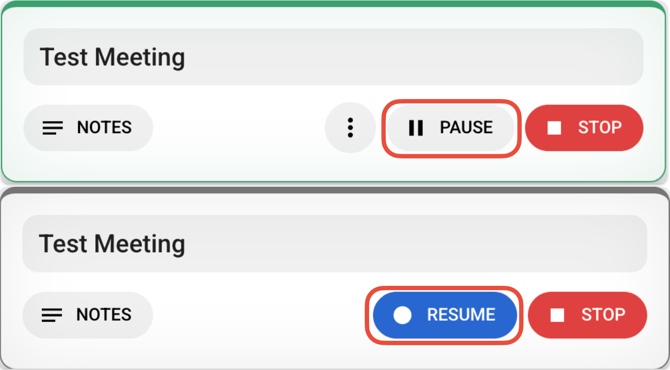
- Pause/resume recording- pause the recording partway through and pick it back up when you're ready.
- Stop recording- end the recording once your meeting wraps up.
Disable meeting detection notifications
You can turn this notification off two way:
From the Meet page:
-
Click the settings (
 ) icon at the top.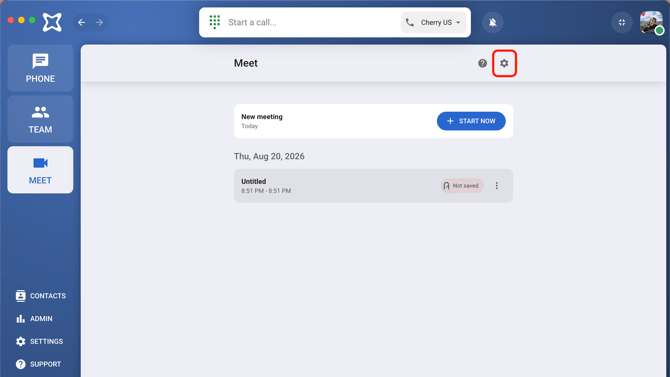
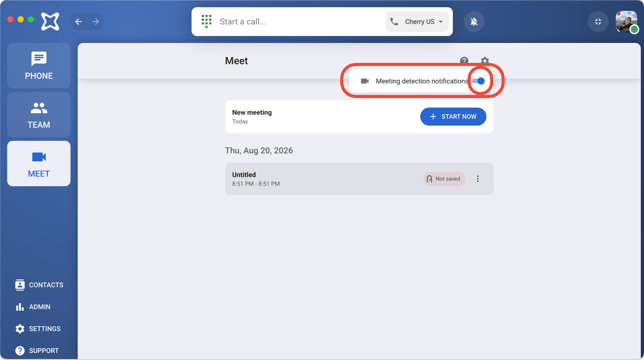
-
Toggle off meeting detection notifications.
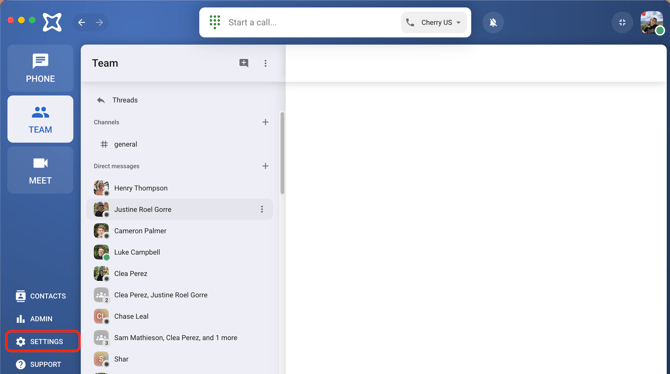
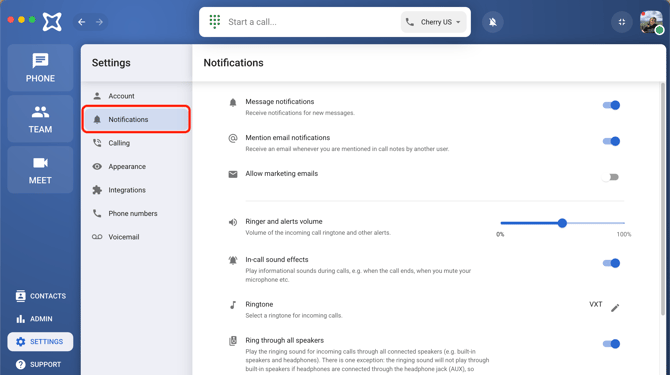
From the Settings page:
-
Go to VXT Settings.
-
Click Notifications.
-
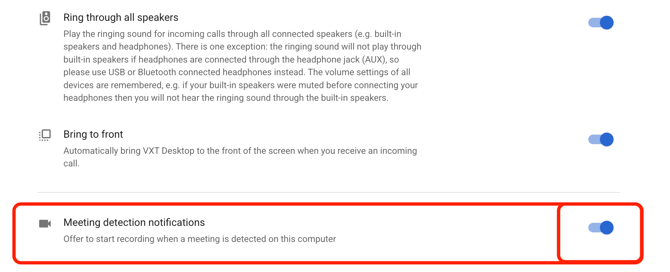
Scroll down to Meeting detection notifications and toggle it off.
Limitations
VXT Meet launched on February 28, 2026, and there are a few limitations we're working to improve:
- Meet recordings don't stop on their own. You'll need to end them manually.
- You can't edit speaker names in transcripts.
- Transcripts aren't ready right away—they're generated after the meeting is saved.