
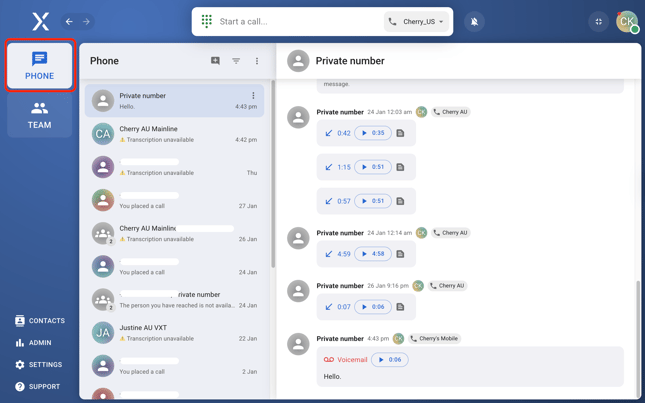
To manage all your messages and call logs in VXT, you can do so directly through the Phone page. It’s the first screen you see when opening the VXT app, providing quick access to recent calls and communication history.
Here are the steps to:
Access the phone page
- Open the VXT app.
- The Phone page is located at the top right of the app and is displayed immediately upon login, showing your list of conversations and call logs.
Filter messages
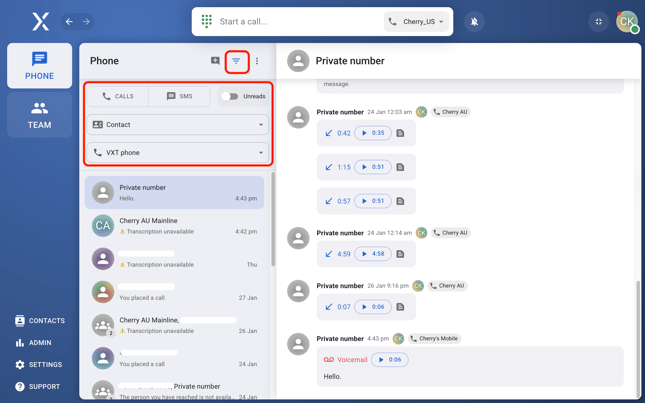
- To filter messages, click on the funnel-like symbol at the top left corner of the page, located between the new message icon and the vertical triple dot icon.
-
You can filter messages through:
- Unread - See only unread messages or calls
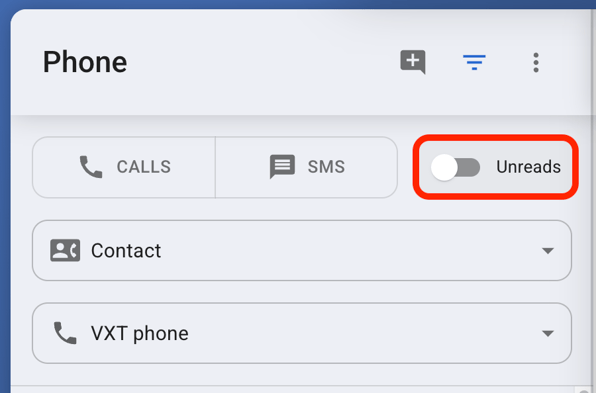
- Unread - See only unread messages or calls
-
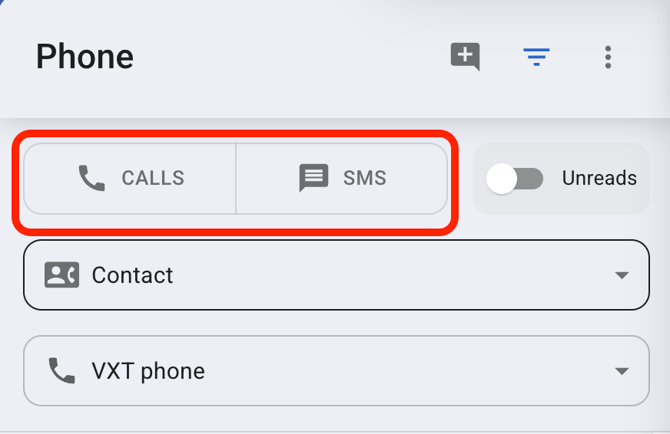
- Calls/SMS - View just call logs or text messages
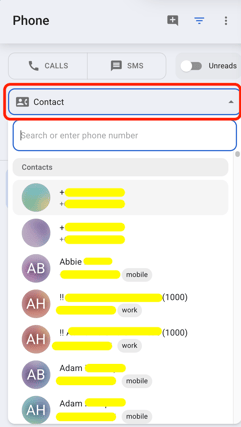
- Contacts - See all calls and messages with a specific contact
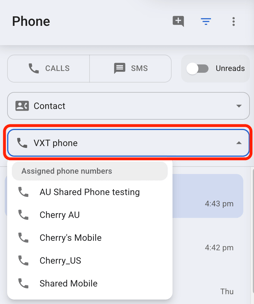
- VXT Phone - View all calls or messages made or received using a specific VXT number
- Calls/SMS - View just call logs or text messages
Create a new message
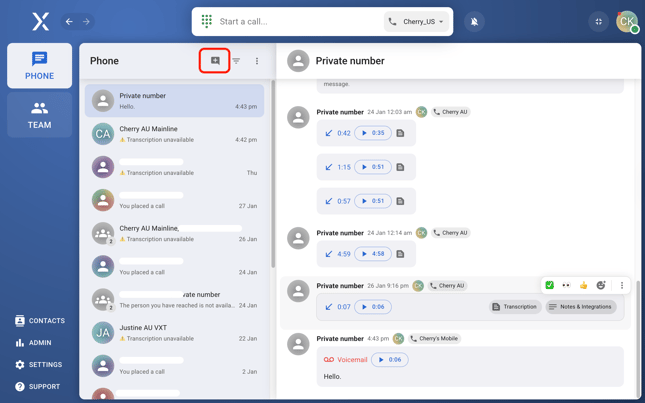
- Click on the new message icon at the top left corner of the inbox screen.
- Enter the recipient’s phone number or select from your contacts.
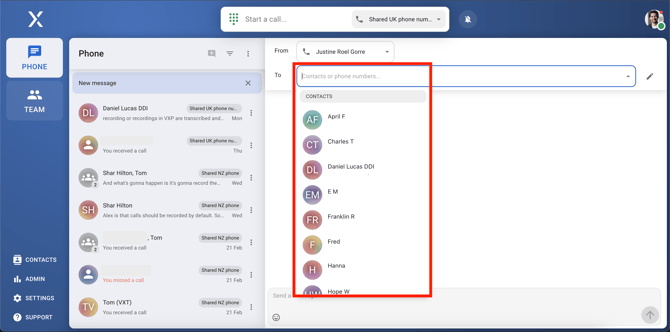
- Compose your message and hit send to start a new conversation.
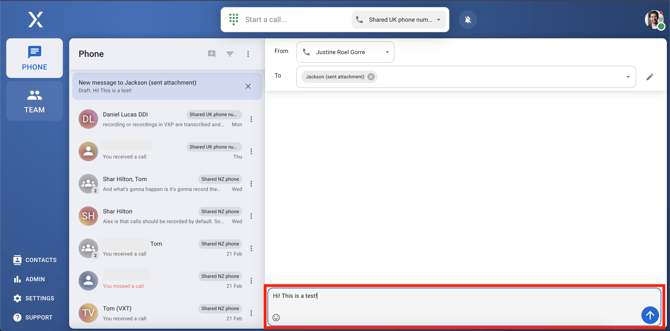
Delete call logs
- To delete a specific call or message within a conversation:
- Open the conversation on the phone page .
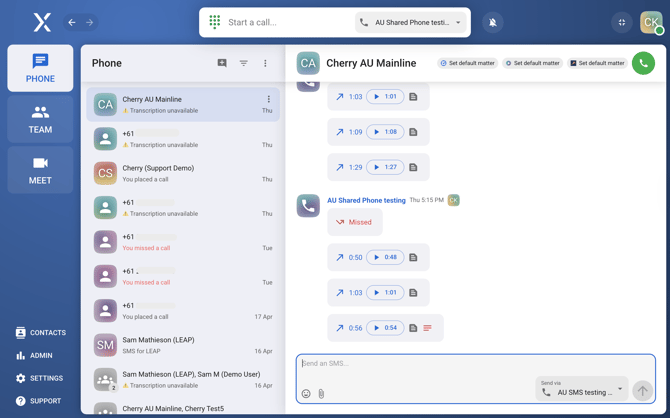
- Hover over the message you want to delete and click the three dots (
 ) icon.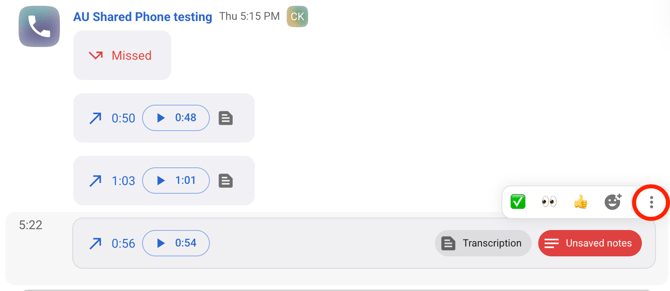
- Hit delete.
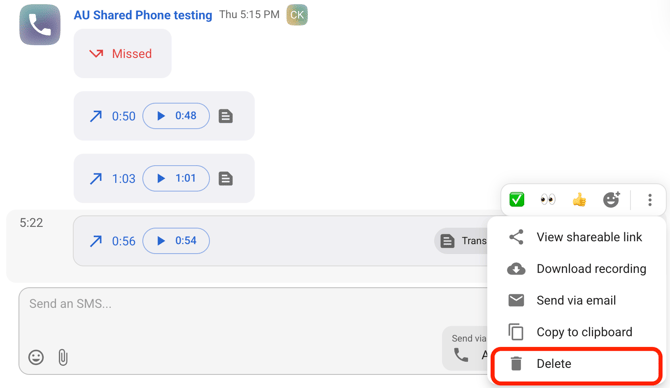
- Open the conversation on the phone page .
Keeping your phone page organized ensures efficient communication.
For further assistance or questions, feel free to reach out to your VXT admin or support team.