
In this article, we'll cover:
Add VXT Application in iManage (Admins)
-
Click your profile icon at the top right.
-
Select control center.
- Go to applications.
- Select add application.
- Choose VXT - AI Notes from the applications list
- Hit authenticate and make sure these settings are configured:
- Authentication → Allow refresh token: Enabled
- Access → Allow access to: choose either All users (everyone gets access) or Custom (Only selected users get access)
- Review → Enable application: Yes
- Hit finish.
Connect the iManage integration
-
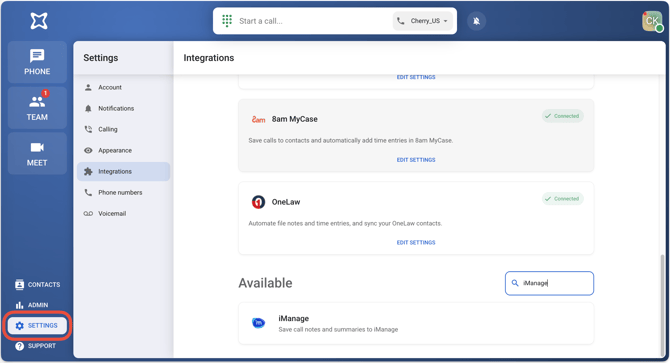
Go to Settings.
-
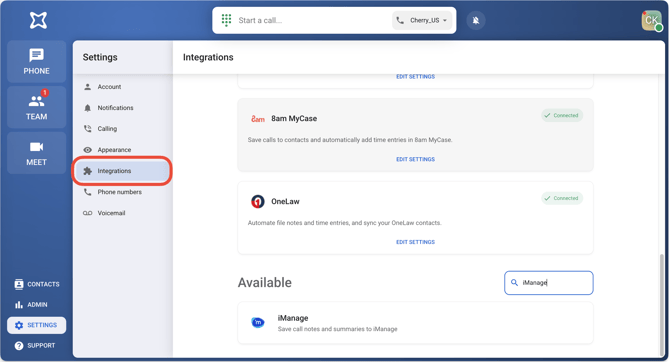
Select Integrations.
-
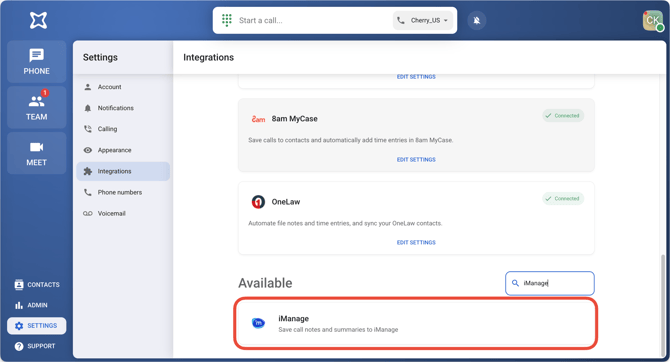
Choose iManage.
-
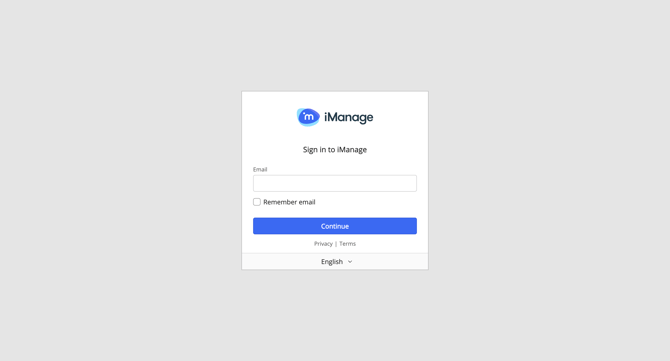
Enter the email and password associated with your iManage account.
-
Once you've successfully integrated, iManage will show as connected in VXT.
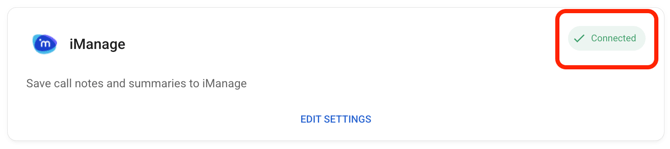
Integration Settings
-
Go to Settings.
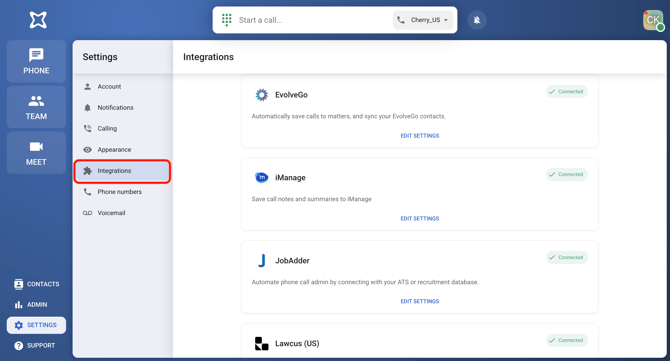
-
Select integrations.
-
Choose iManage.
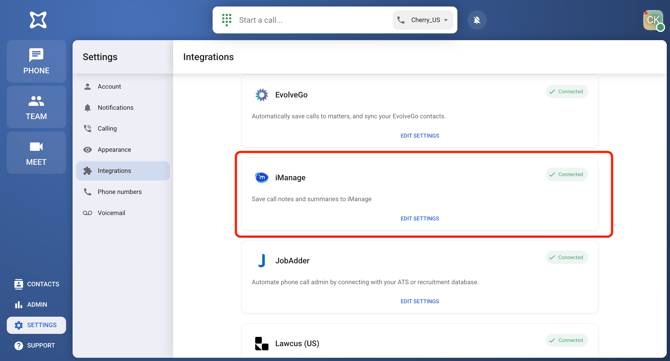
-
On the setup page, use the dropdown to change your default library.
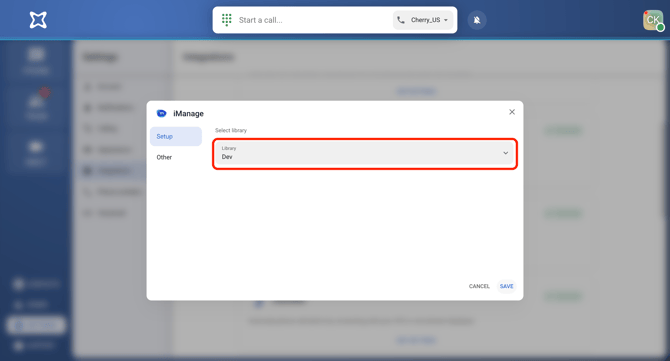
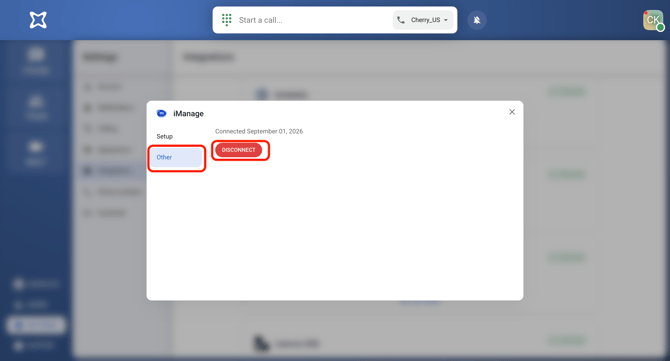
- To disconnect the integration, click on Other → Disconnect.
Troubleshooting
"An error occurred during authorization" when connecting
.png?width=670&height=459&name=image%20(2).png)
The most common cause of this error is that your iManage admin hasn't added VXT as an approved application yet. Ask your org's iManage admin to complete the Add VXT application in iManage steps above, or refer them to iManage's own guide on adding apps.
Already done that? A couple of things to try:
- Double-check you're using your iManage Cloud credentials — not another iManage login you might have, since only Cloud credentials work with VXT.
- Log out of iManage in your browser, then try reconnecting the integration in VXT.
Matters (workspaces) can only be searched using whole words
Searching for matters in iManage works a bit differently than you might expect — it matches on whole words, not partial characters. So if you have a workspace called "Smith Estate Planning" and search "Smi" or "Smith E," it won't show up. Search "Smith" or "Estate" though, and it'll appear right away.
This isn't a VXT limitation — it's how iManage's own search API works, and it matches the same behavior you'd see in the iManage web client itself, so it should feel familiar if you've used iManage directly before.